 Cameron McKay
 I had a Kindle Voyage collecting dust in a drawer. It’s one of the nicest e-readers Amazon ever made (flush glass screen, page turn buttons) but I barely use it anymore as I prefer paper books now. It always bothers me when I have unused tech, and I remembered an article by Matthew Petroff where he jailbroke his Kindle and turned it into a weather display. I wanted to do the same: an always-on weather station that sits in my kitchen near my coffeemaker so I can see the forecast in the morning. It also seemed like a good project to try using Claude Code as an assistant, since it involves a lot of SSH, shell scripting, and reading other people’s code.
In this article, I will walk through how I jailbroke the Voyage, got a standalone weather display working with automatic sleep/wake cycles, and the many dead ends I hit along the way.
Jailbreaking the Voyage
The Kindle Voyage runs firmware 5.13.6, which is well within the range supported by WinterBreak. The jailbreak process itself was straightforward: fill the storage to prevent auto-updates, copy the WinterBreak files, open the Kindle Store to trigger the exploit.
After jailbreaking, I installed the hotfix (to persist the jailbreak across reboots), KUAL (the app launcher), MRPI (package installer), USBNetwork (for SSH access), and KOReader (alternative reader).
The standard workflow for installing packages on a jailbroken Kindle is: plug in USB, copy a .bin file to mrpackages/, eject, type ;log mrpi in the search bar, wait, repeat. This got old fast. Once I had USBNetwork running, I could SSH into the Kindle and do everything directly, which made the rest of the project much more pleasant. If you’re doing anything beyond basic package installs, get SSH working early.
Getting weather on screen (three bugs deep)
I started with weather_kindle by Scott Colby, which is a standalone weather display that runs entirely on the Kindle. No external server needed. It fetches forecast data from the World Meteorological Organization, fills an SVG template, and renders it to a PNG.
The problem: weather_kindle’s installer doesn’t work on the Voyage. The .bin package has device targeting that rejects PW2+ devices. So I installed it manually by copying the files directly.
The next problem: pngcrush (which converts the PNG to greyscale) was compiled against libpng12, which doesn’t exist on the Voyage. The system has libpng16. I ended up just skipping pngcrush entirely since the e-ink display handles the conversion fine.
Then the display issue. The original weather_kindle uses eips to render the image, but eips doesn’t scale. The Voyage has a 1072x1448 display, while the weather image is 600x800. Feeding a 600x800 RGB image to eips on a 1072x1448 8bpp greyscale framebuffer produces garbage.
The fix was FBInk, which handles scaling, colour conversion, and proper e-ink refresh modes. The magic incantation:
fbink -k -f -W GC16 -w
fbink -g file=weather.png,w=-2,h=-2 -f -W GC16
The first command clears the screen with a full GC16 refresh and waits for completion. The second displays the image scaled to fit. Without the -w (wait) flag on the clear, the image write would race with the clear and you’d get ghosting.
Waking up on a schedule
This was the hard part. I wanted the Kindle to sleep most of the time (for battery life) and wake itself up periodically to refresh the weather.
What didn’t work:
- Cron jobs don’t run while the Kindle is suspended
lipc-set-prop com.lab126.powerd wakeUpwakes the device but the daemon script is also suspended, so it can’t react to the wakelipc-wait-event com.lab126.powerd resumingblocks in userspace and gets frozen during suspend
What worked: The same approach used by kindle-clock and kindle-kt3_weatherdisplay. Set the RTC alarm, then force suspend-to-RAM:
rtcwake -d /dev/rtc1 -m no -s $INTERVAL
echo "mem" > /sys/power/state
When the RTC fires, the kernel resumes and the script continues from the next line. Simple, reliable.
What to stop (and what not to)
The Kindle’s GUI is managed by several upstart services. You need to stop the GUI so it doesn’t overwrite your weather image, but you can’t stop everything or WiFi breaks.
After reading through several projects and a lot of trial and error, here’s what you need to stop:
stop lab126_gui
stop otaupd
stop phd
stop tmd
stop x
stop todo
stop mcsd
And here’s what you must NOT stop:
framework: stopping this from a KUAL-launched script kills the script itself (KUAL runs under the framework)powerd: breaks battery monitoring and power managementlab126: breaks the WiFi interface entirely
Instead of stopping powerd, disable the screensaver via its LIPC property:
lipc-set-prop com.lab126.powerd preventScreenSaver 1Surviving your own GUI shutdown
The trickiest part was launching a long-running script from KUAL that survives the GUI shutdown. KUAL runs inside the framework’s process tree. If you stop lab126_gui, KUAL dies, and normally takes your script with it.
The solution (which I found in kindle-clock): use setsid in the KUAL menu action to create a new session:
{
    "name": "Start Weather Display",
    "action": "setsid /mnt/us/weather/bin/weather_display.sh",
    "exitmenu": true
}
setsid detaches the script into its own session. When lab126_gui dies, the script is in a separate process group and survives.
Coaxing WiFi back to life
WiFi doesn’t automatically reconnect after suspend-to-RAM. The reconnection needs a multi-stage escalation:
- Immediately:
wpa_cli reassociate - After 10 seconds:
wpa_cli disconnectthenwpa_cli reconnect - After 30 seconds: full radio toggle via
lipc-set-prop com.lab126.wifid enable 0/1 - After 60 seconds: give up and show the cached image
This pattern comes from nicoh88’s KT3 weather display, which has clearly been through the same pain.
The Voyage doesn’t do 5 GHz
One more gotcha: the Kindle Voyage only supports 2.4 GHz WiFi. I spent a while wondering why it couldn’t see my office network before discovering the network was 5 GHz only. I ended up using macOS Internet Sharing to create a 2.4 GHz hotspot from my wired connection.
The result
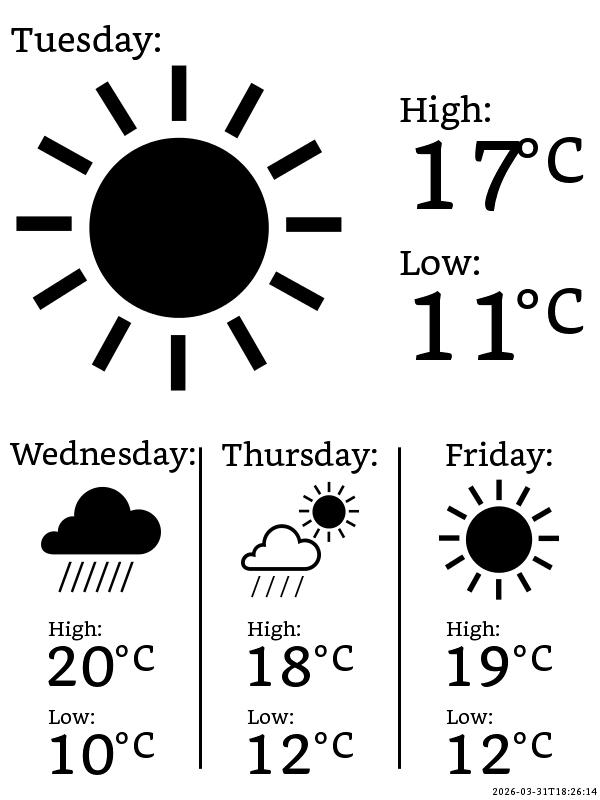
The Kindle sits in my kitchen near my coffeemaker showing the Barcelona forecast. Every 6 hours it wakes up, connects to WiFi, fetches fresh weather data, renders it, displays it with a clean e-ink refresh, and goes back to sleep. Battery should last 3-4 weeks.
To switch back to e-reader mode, I just hold the power button for 20 seconds to reboot.
The code is at cdmckay/kindle-voyage-weather on GitHub.
Conclusion
In this article we turned a dusty Kindle Voyage into a standalone weather display with automatic sleep/wake cycles. The key lessons: setsid for surviving framework stops, rtcwake + echo "mem" for reliable sleep/wake, and never stop powerd or lab126 unless you enjoy debugging WiFi failures.